
How the platform fits together
The BPI Platform is two apps that share one account: BPI Connect on your phone and BPI Ops in a web browser. Team members live mostly in Connect. Managers use both: Connect for people and schedules, Ops for the store's daily operations.
| App | Where you use it | What it is for |
|---|---|---|
| BPI Connect | Phone app (iOS and Android) | Chats, announcements, your schedule, swaps and coverage, time off, recognition, HR documents, Academy progress |
| BPI Ops | Web browser on the store computer, tablet, or phone | Checklists, Self OA, prep, cash, nightly numbers, forms, maintenance, DWP records, BPI Academy, store TV dashboard |
What you see depends on your role. This guide covers the roles most people have:
| Role | Who | Typical use |
|---|---|---|
| Team Member (TM) | Insiders, drivers, CSRs | Check schedule, pick up or swap shifts, request time off, read and acknowledge messages and documents, track training |
| Manager / Shift Runner | Shift managers, MITs | Run the shift in Ops (checklist, prep, cash, nightly numbers), assign to-dos, handle attendance fixes, coach and document |
| General Manager | Store GM | Everything a manager does, plus final approval of shift swaps and pickups, cash review, labor, and DWP review for the store |
Supervisors, coaches, HR, and admins have more tools that are outside this guide. If a menu item in this guide is missing for you, your access has not been turned on for that module; ask your GM or supervisor.
Getting started (everyone)
New hires request their own account by scanning the store's registration QR code. A manager approves the request, and the same login then works in both apps.
- Scan the QR code posted in the store (or one your manager shows you). It opens the Create Account Request form.
- Fill in your details, your weekly availability, and any time-off dates you already know. These go into Connect from day one.
- Wait for approval. Your manager or supervisor reviews the request. You get access once it is approved.
- Install BPI Connect and sign in with your username or email. Forgot your password? Type your username or email first, then tap Forgot Password.
- Allow notifications. Messages, shift reminders, swap requests, and "are you on your way?" alerts all arrive as push notifications.
- Set up your profile under More > My profile: a photo, About me, Pepperoni Time, Pizza Hack, and your experience. Turn on the shift reminder there to get a heads-up about an hour before each shift.
The Connect app has five tabs along the bottom: Home, Chats, People, Ops, and More. The Ops tab shows a badge when something is waiting on you.
Team Member guide
As a TM, almost everything you need is in the BPI Connect app. Open it at the start of every shift and clear anything under Needs Your Attention.
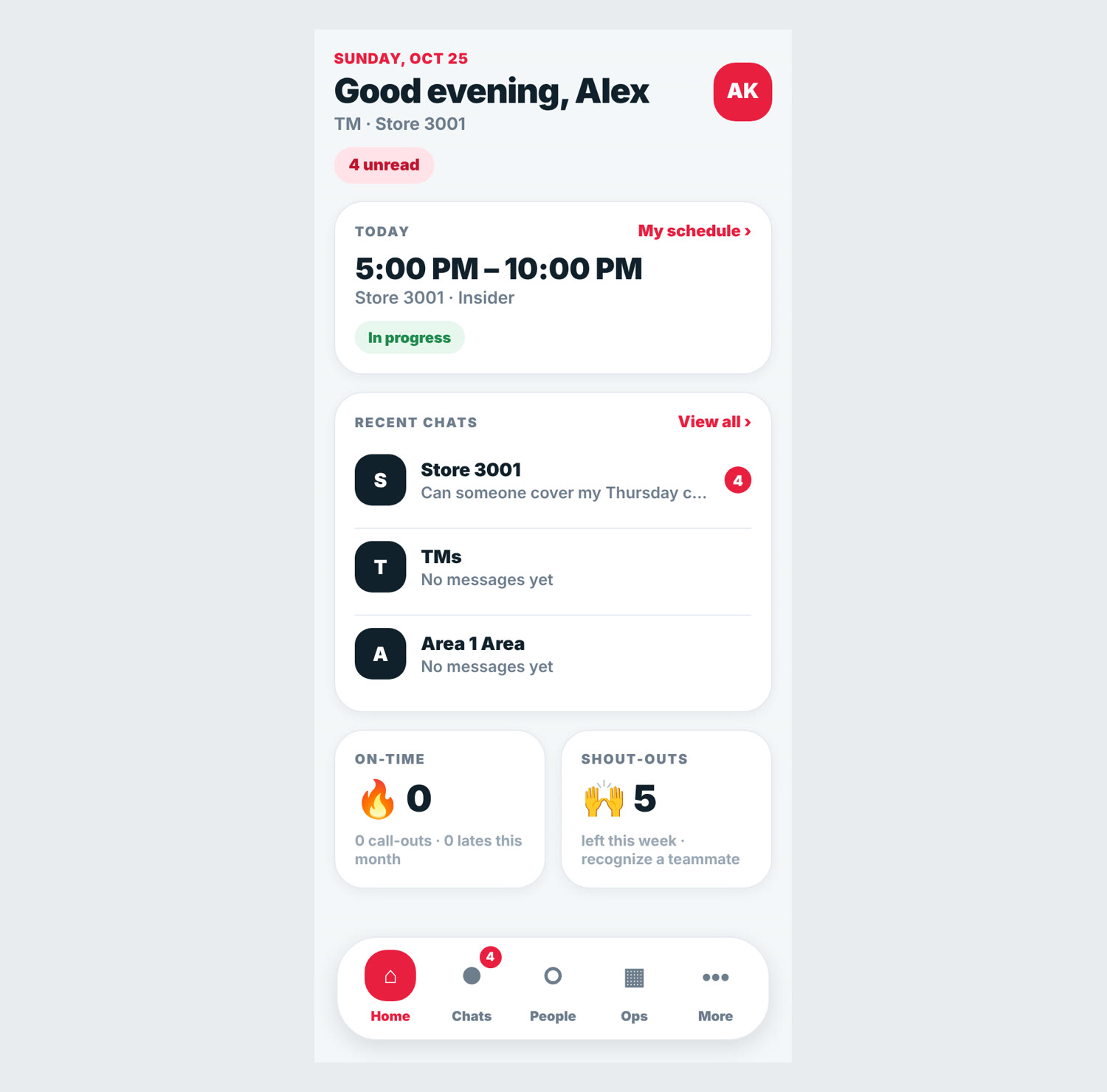
Your Home screen
- Today shows your shift for today, or "No shift today".
- Needs your attention lists anything waiting on you: unread required messages, documents to sign, swap requests.
- Recent chats, your on-time record, and recent shout-outs sit below.
Your schedule (Ops tab > Schedule)
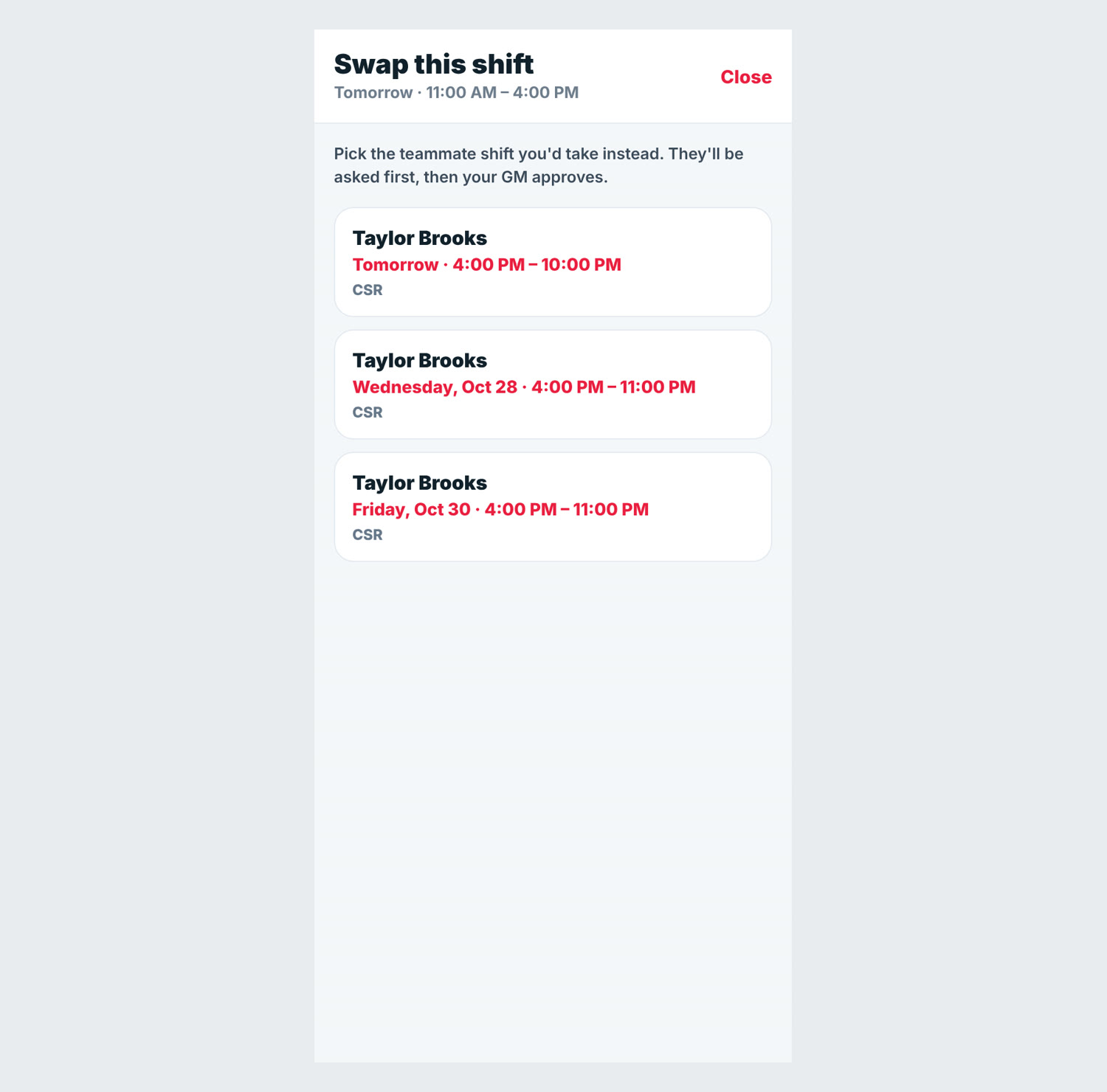
My Schedule shows your upcoming shifts from Pulse. From there you can:
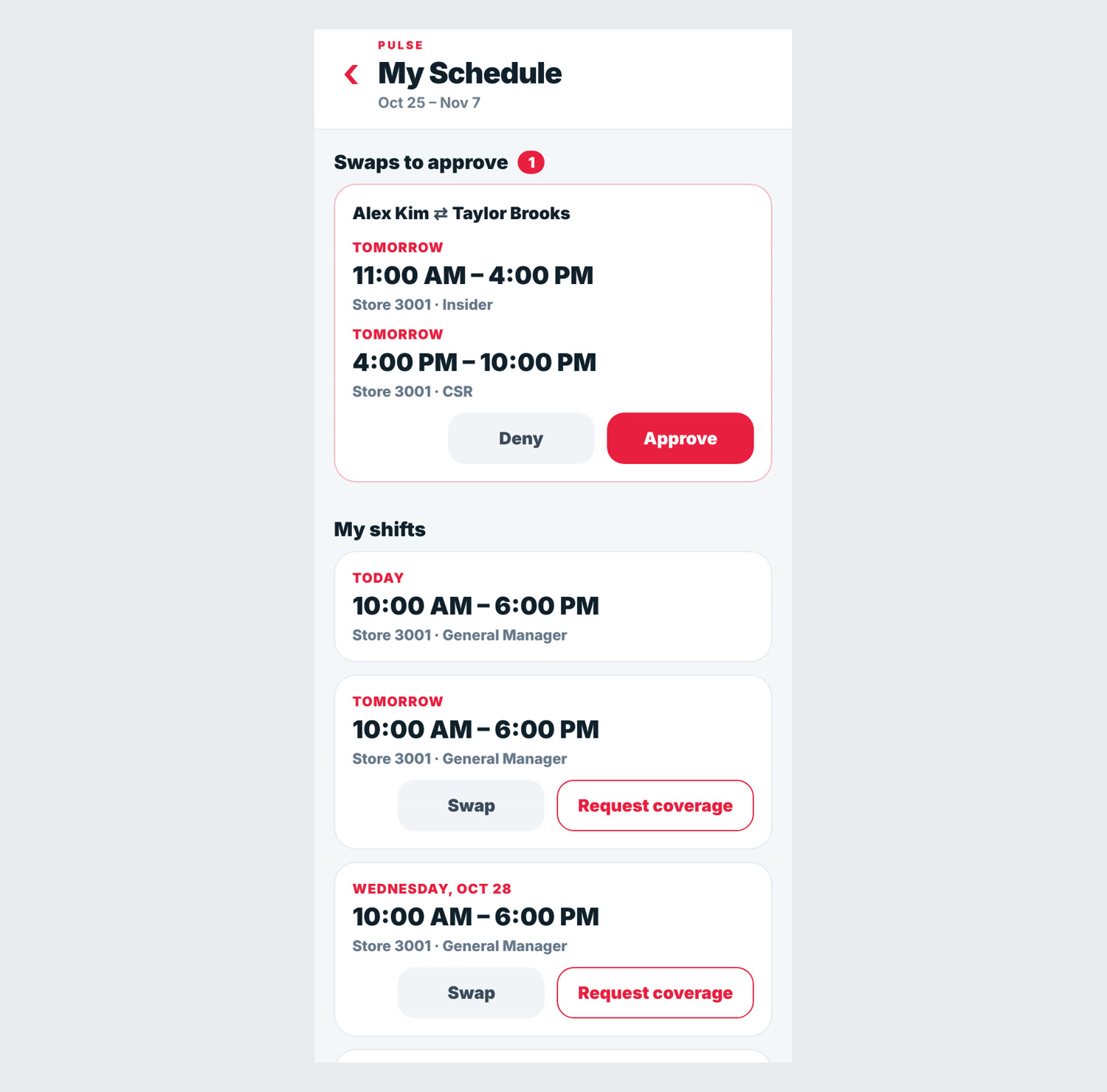
- Swap a shift. Tap Swap on one of your shifts, pick the teammate shift you would take instead, and tap Ask to swap. The status moves from "waiting on your teammate" to "waiting on your GM" to "Swapped, approved by your GM". You can cancel until it is approved.
- Request coverage. Tap Request coverage when you need someone to take a shift. It shows as "Looking for a teammate to cover" until someone picks it up and your GM approves.
- Pick up a shift. Open shifts from teammates appear under Shifts you can pick up.
- Answer swap requests sent to you under Swap requests for you: it shows what you take and what you give up. Accept or Decline.
Availability and time off (Ops tab > Availability & Time Off)
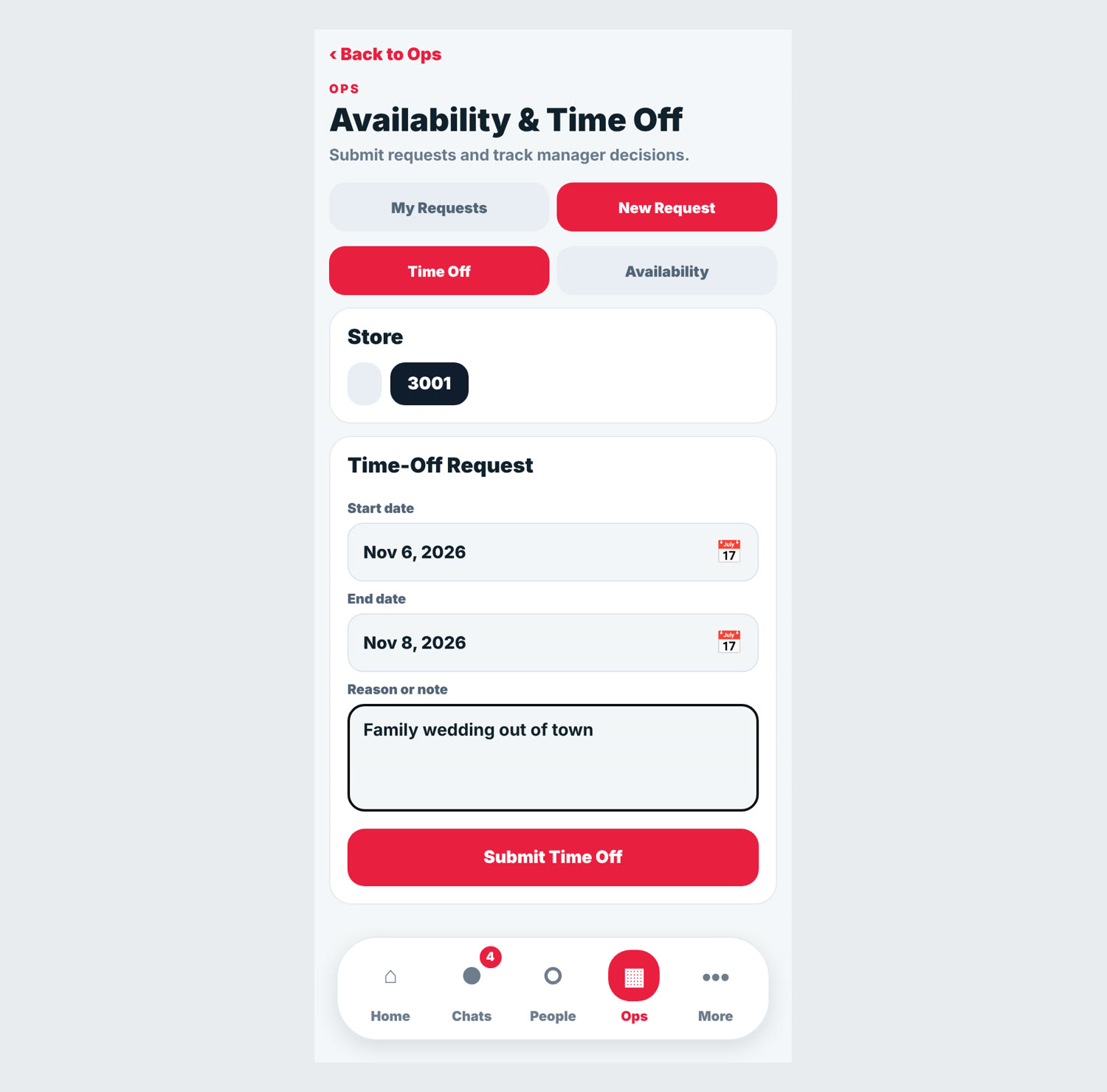
- Tap New Request and choose Time Off (tap your store number, then pick start and end dates and add an optional reason) or Availability (effective date and hours, for example "4 PM to Close").
- Track the status of each one under My Requests.
- When the company asks everyone to confirm availability, a Quick update card pops up. Fill in your hours and any notes (school, transportation) so schedules are built correctly.
Being on time
- If you have not clocked in 10 minutes after your shift starts, Doughy sends a push asking Are you on your way? Tap the answer that fits: On the way (5, 15, or 30 min), I'm here, Can't make it, or Not my shift. Your GM sees your answer.
- You are not chased if you already have a coverage request open for that shift.
- The Attendance card shows your call-outs, lates, and on-time streak. If something is wrong, open Attendance Fixes and pick: Someone covered for me, It wasn't my shift, or Something else (with a note). It shows "Waiting for manager" until your manager fixes or declines it.
Messages and announcements (Chats tab)
- You can message people in your own store group, and you are automatically in your store's chats.
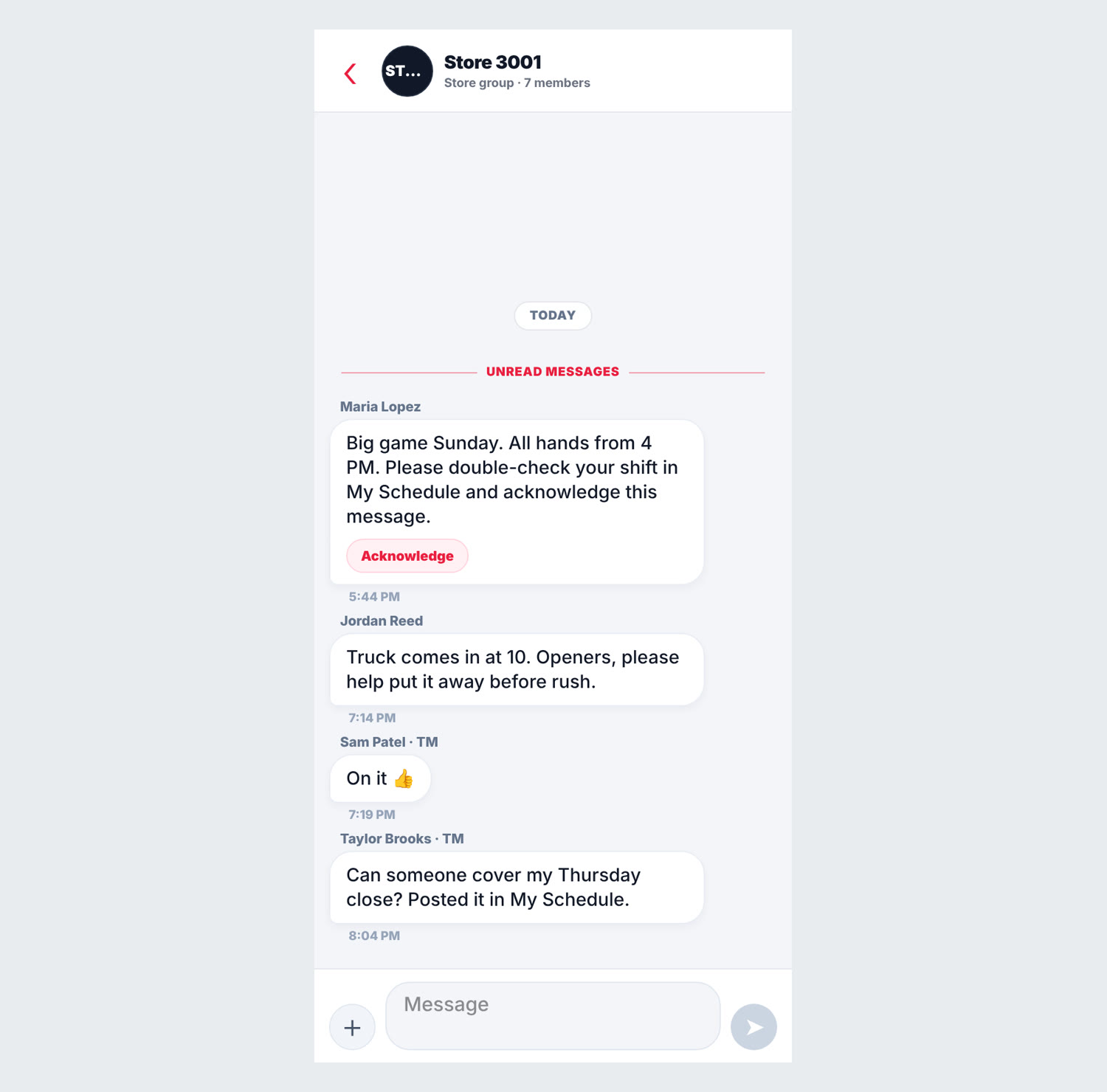
- Company, HR, area, and store announcements land in Chats. Some are marked ACK REQUIRED: open them and acknowledge. The sender can see who has.
- Long-press a message for actions (reply, forward, copy). Some messages include polls; tap your answer.
- Use the search bar to find old chats and messages.
Recognition
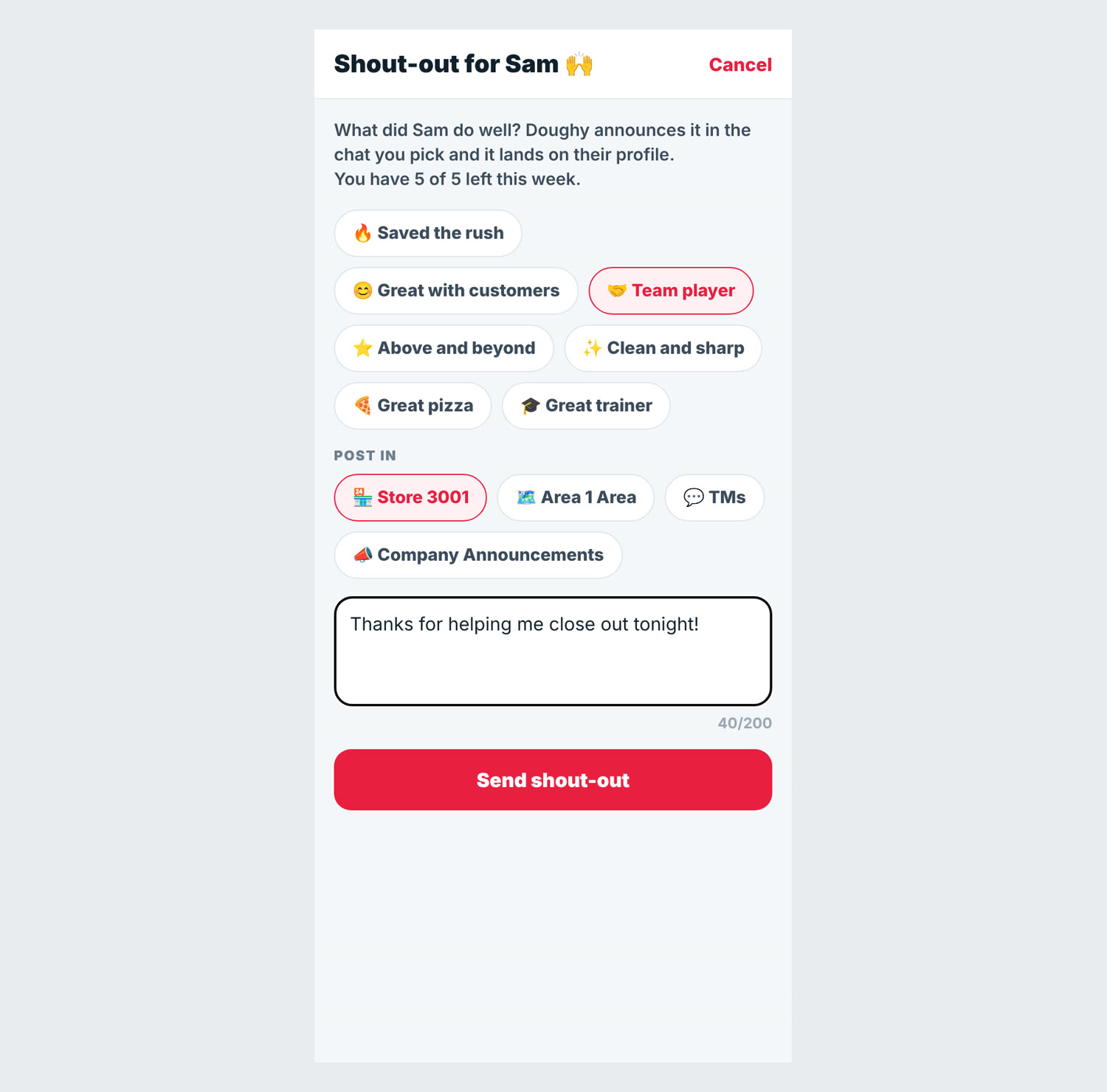
Open Recognition to see this week's most recognized teammates and recent shout-outs. Tap to give a shout-out, search for the teammate, and write what they did.
HR documents and DWP records (More > BPI Documents)
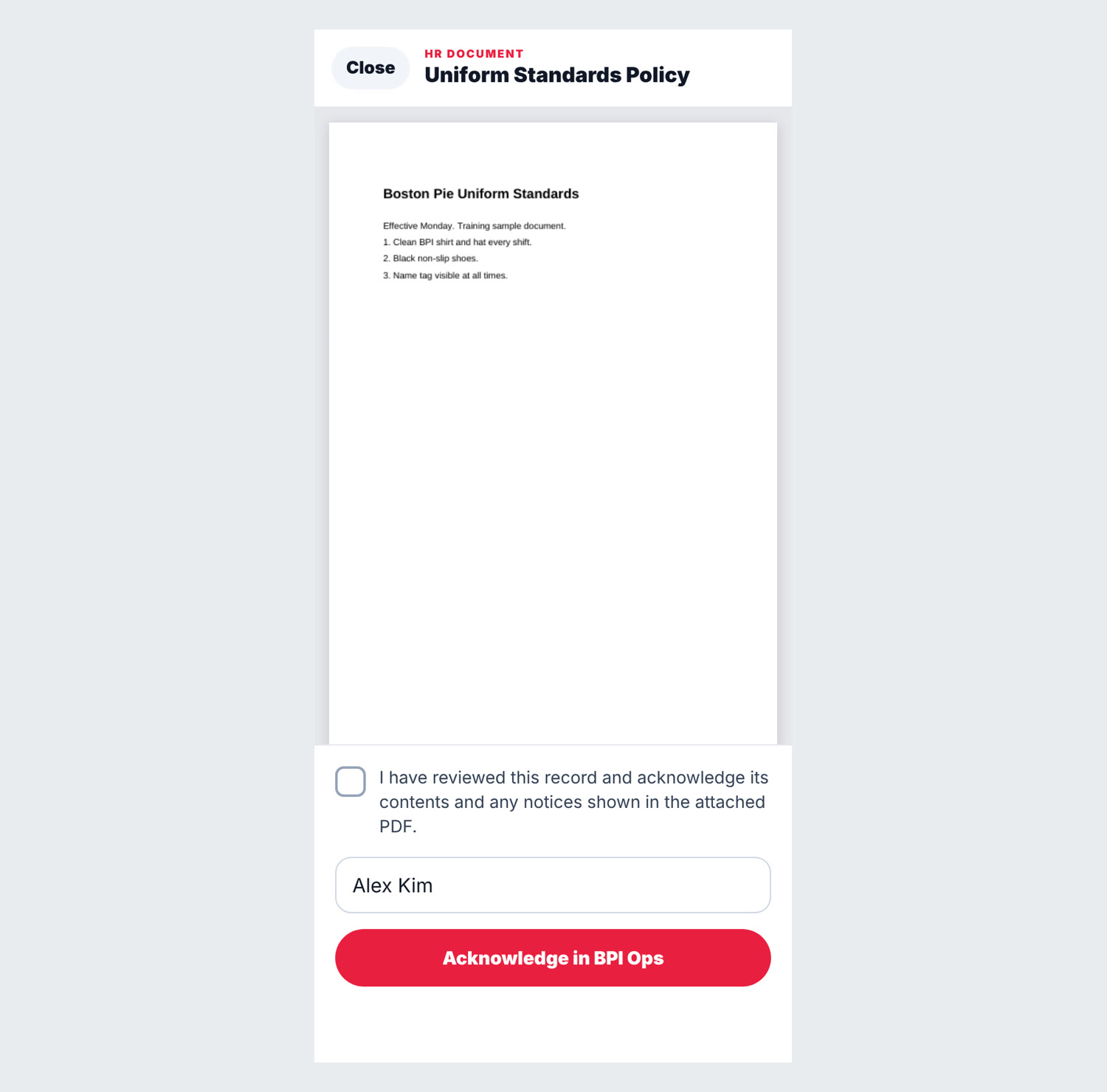
Anything HR needs you to sign shows under Action required. Open it, read it, tick the review box, type your full name, and tap Acknowledge. Signed items move to Completed & records, along with your DWP (Discipline Without Punishment) records. You confirm a DWP in person with your manager when it is written, and you can add your own note at that time.
Training (More > BPI Academy)
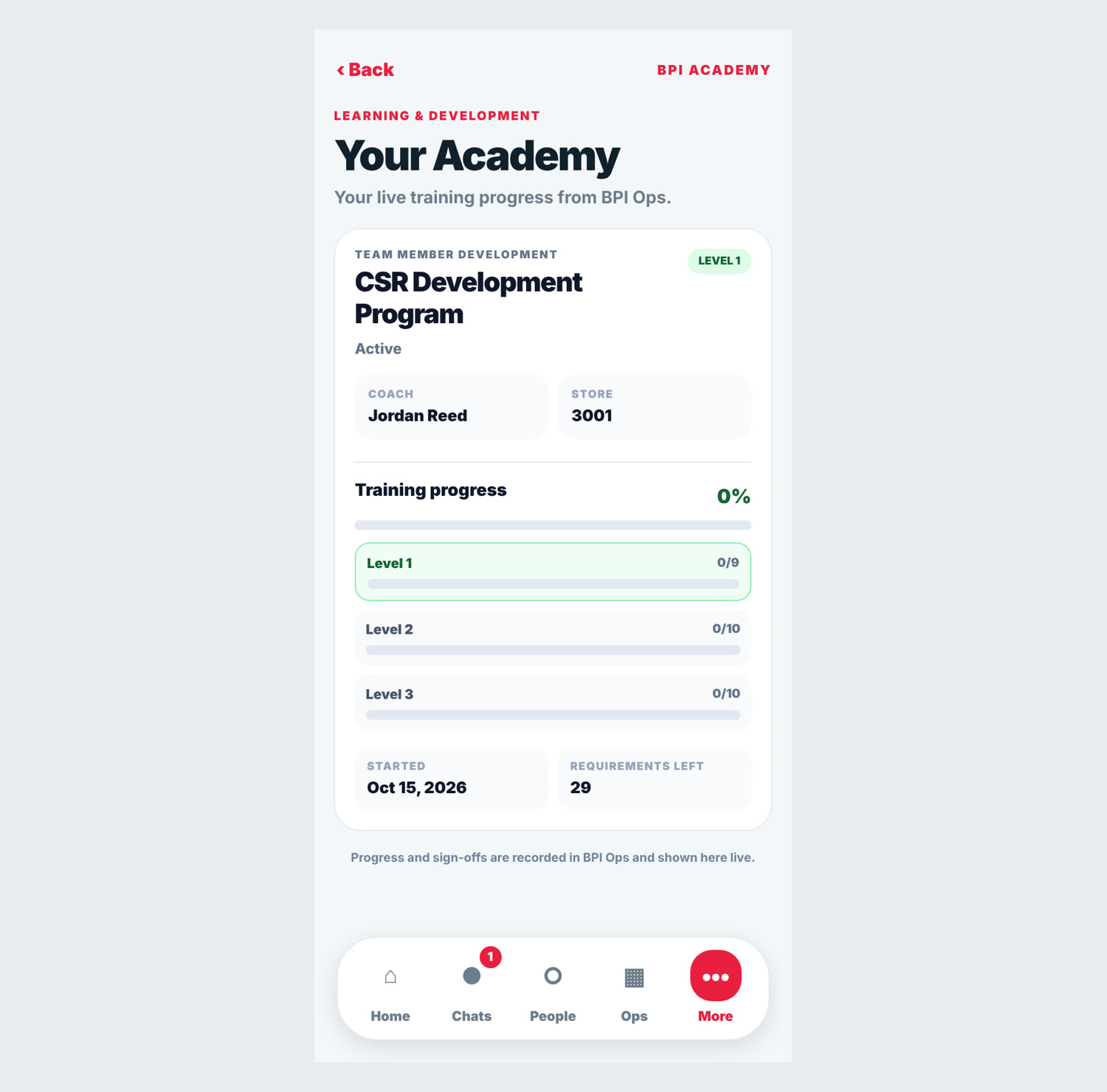
BPI Academy shows your development: your CSR level progress (Levels I to III and captain certifications), requirements left, and any training checklist assigned to you, such as the 12-day onboarding guide. Your coach or manager signs off each step.
Shift to-dos (BPI Ops web)
If your GM assigns you shift tasks, sign in to BPI Ops and open My To-Dos to see and complete them.
BPI Perks
More > BPI Perks lists partner discounts and offers for BPI team members.
Manager guide: running the shift in BPI Ops
Managers run the store's day from the Daily Ops menu in BPI Ops. Work through it in the order below; everything you enter feeds the store dashboard, the GM and supervisor reports, and Doughy.
| When | Task | Where in BPI Ops |
|---|---|---|
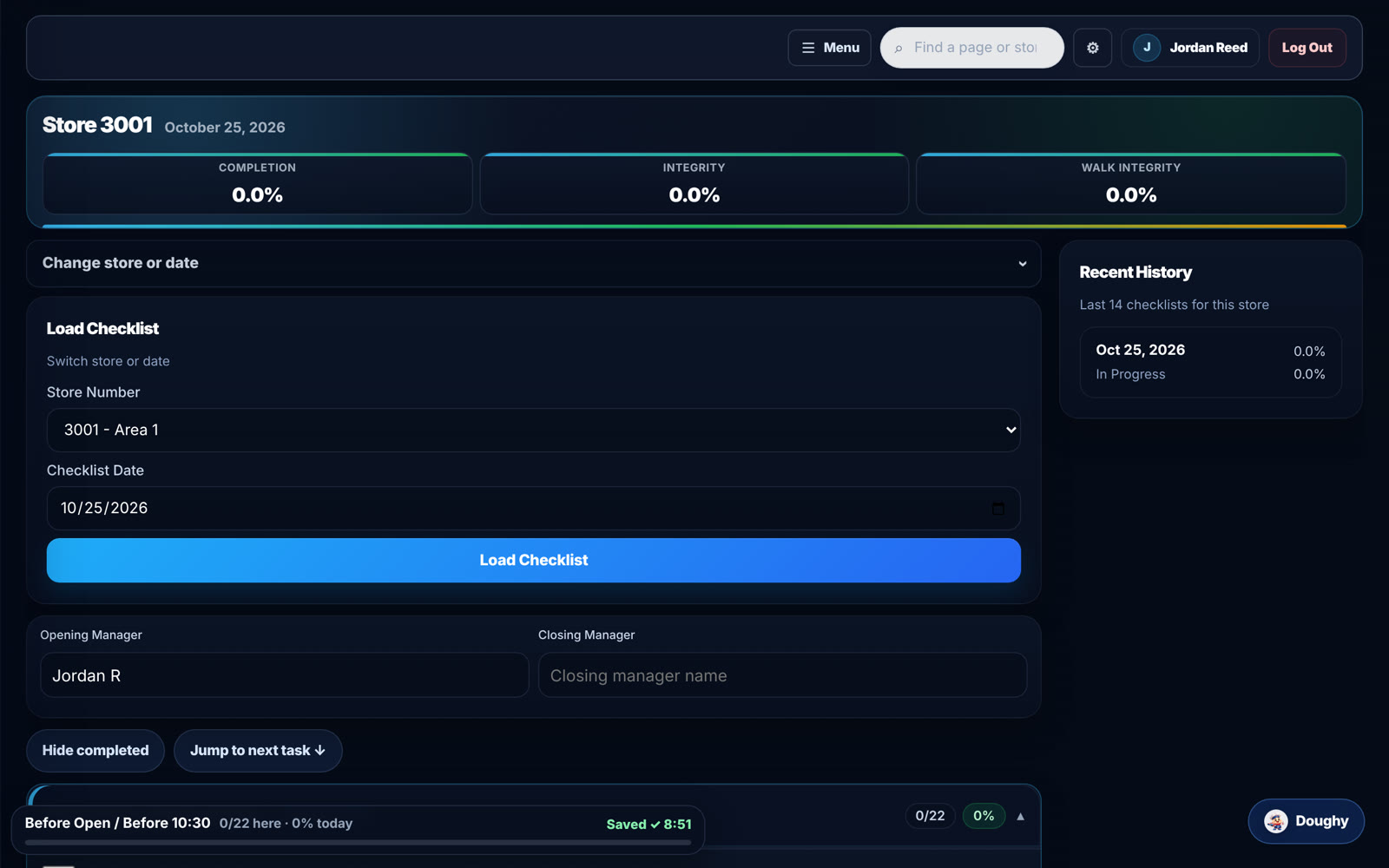
| Before open (by 10:30) | Start the day's checklist, enter Opening Manager | Daily Ops > Checklist |
| Before open | Load the prep sheet and prep to build-to | Daily Ops > Prep |
| During the day | Complete the Self OA | Daily Ops > Self OA |
| 3 PM | 3 O'Clock Restock section of the checklist | Daily Ops > Checklist |
| During the shift | Manager's Walk section; assign and follow up shift to-dos | Checklist, Shift To-Dos |
| Any time | Submit store forms, log maintenance issues, print labels | Forms, Maintenance, BPI Labels |
| Close | Cash log, Closing Manager on checklist, Nightly Numbers | Cash, Checklist, Nightly #s |
Checklist
- Open Checklist, confirm the store and date, and tap Load Checklist.
- Enter your name or initials as Opening Manager before starting; the closer fills in Closing Manager.
- Tap each task as you complete it. Every tap saves automatically. Use Save all changes only if a task shows "Not saved".
- Use Hide completed and Jump to next task to move fast. Add notes where needed.
Incomplete checklists trigger email alerts at 11 AM and 4 PM to the GM and supervisor, so finish each section on time. Tapping many tasks at once is flagged as a "burst"; complete tasks as you actually do them.
Self OA
The Self OA is the store's own daily operations assessment.
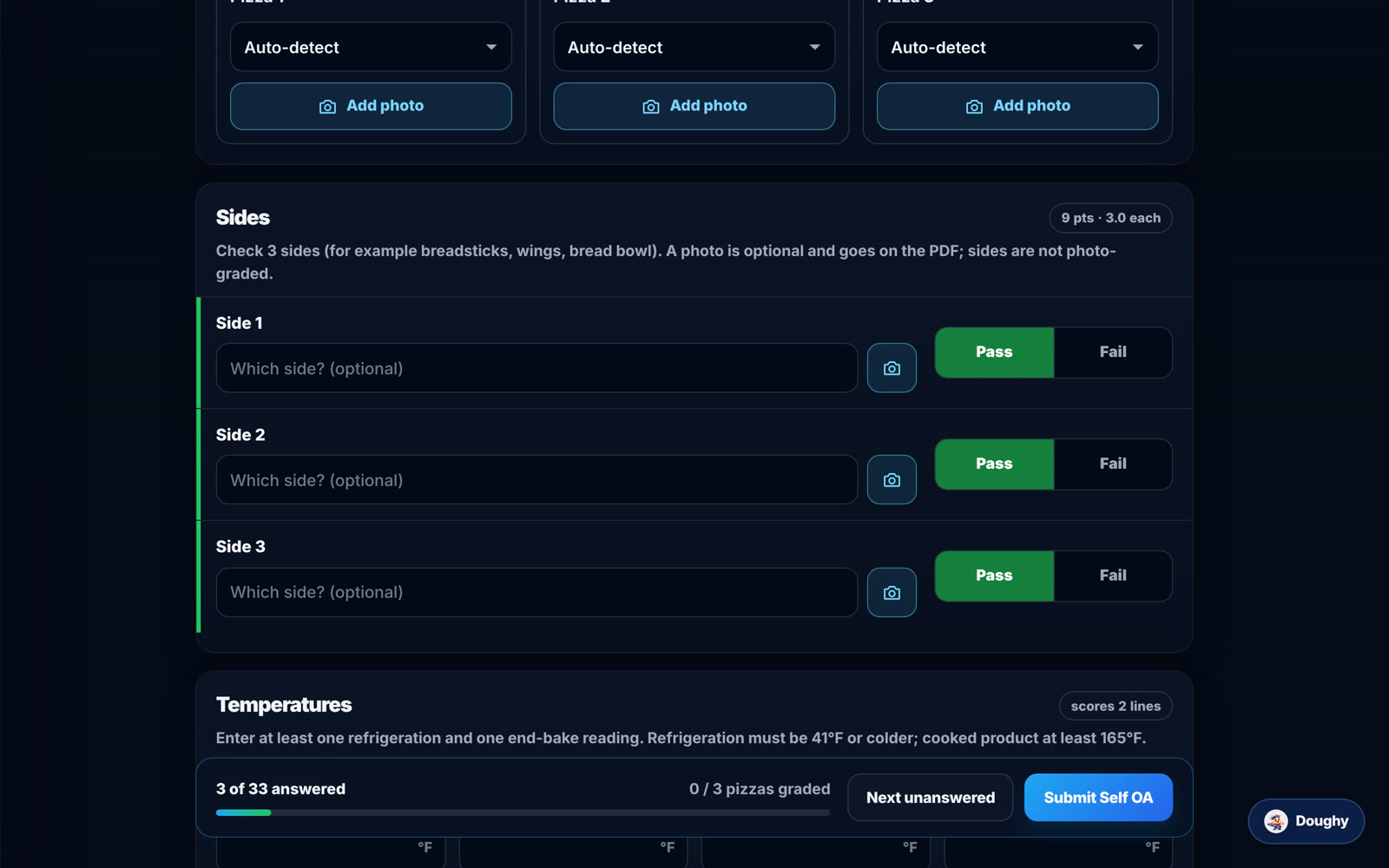
- Open Self OA and tap Start new Self OA (or continue today's draft).
- Answer every Critical Operations Element with Pass or Fail. A failed critical item subtracts points.
- Add side photos and pizza photos, and record who is on.
- Enter at least one refrigeration and one end-bake temperature.
- Use Next unanswered to find gaps, then Submit Self OA. The result is sent to Connect.
Prep
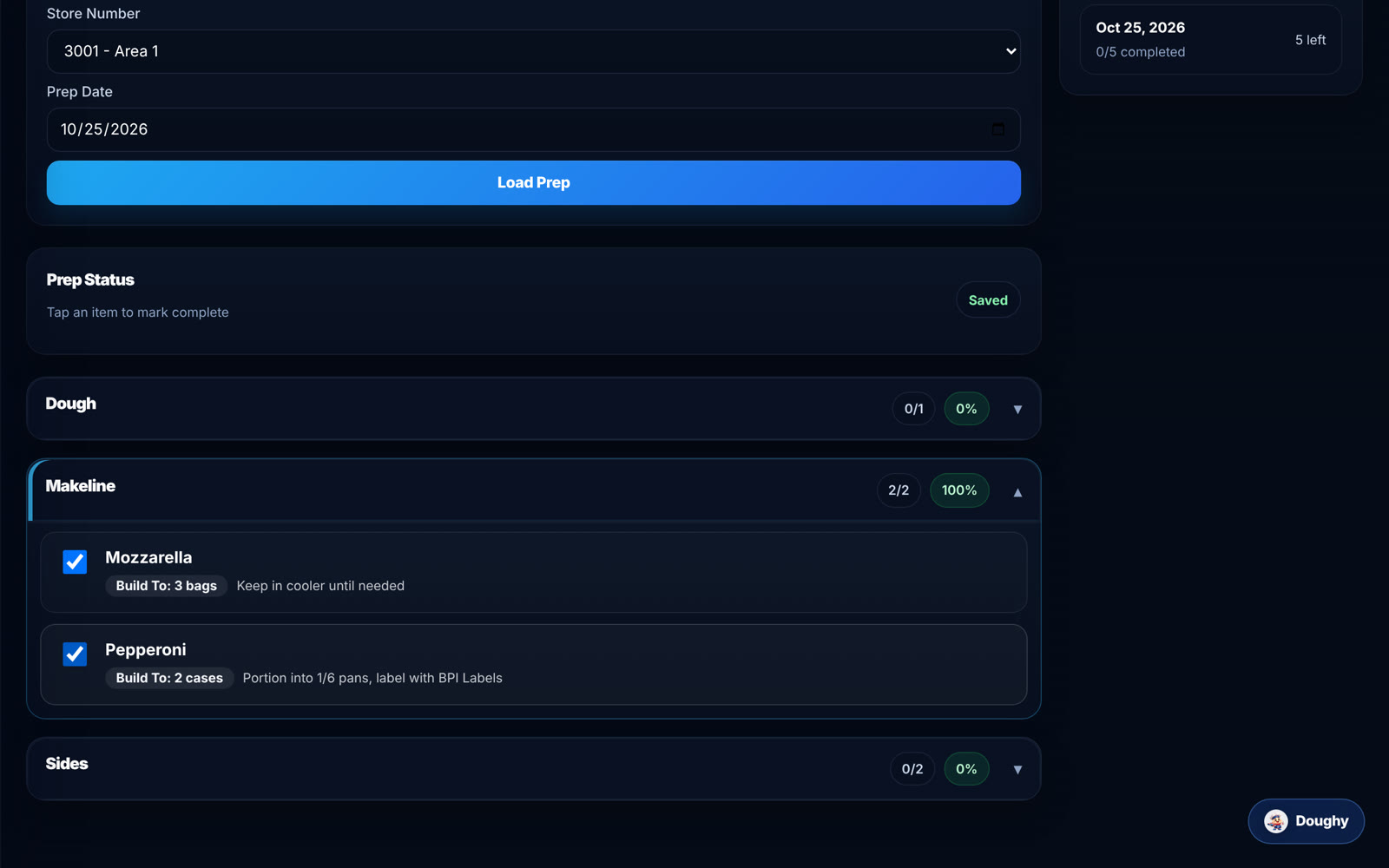
Open Prep, pick the store and date, and tap Load Prep. Each item shows its build-to amount and how to prep it. Open a section and tap each item as it is done. Your GM or supervisor manages which items appear.
Cash Control
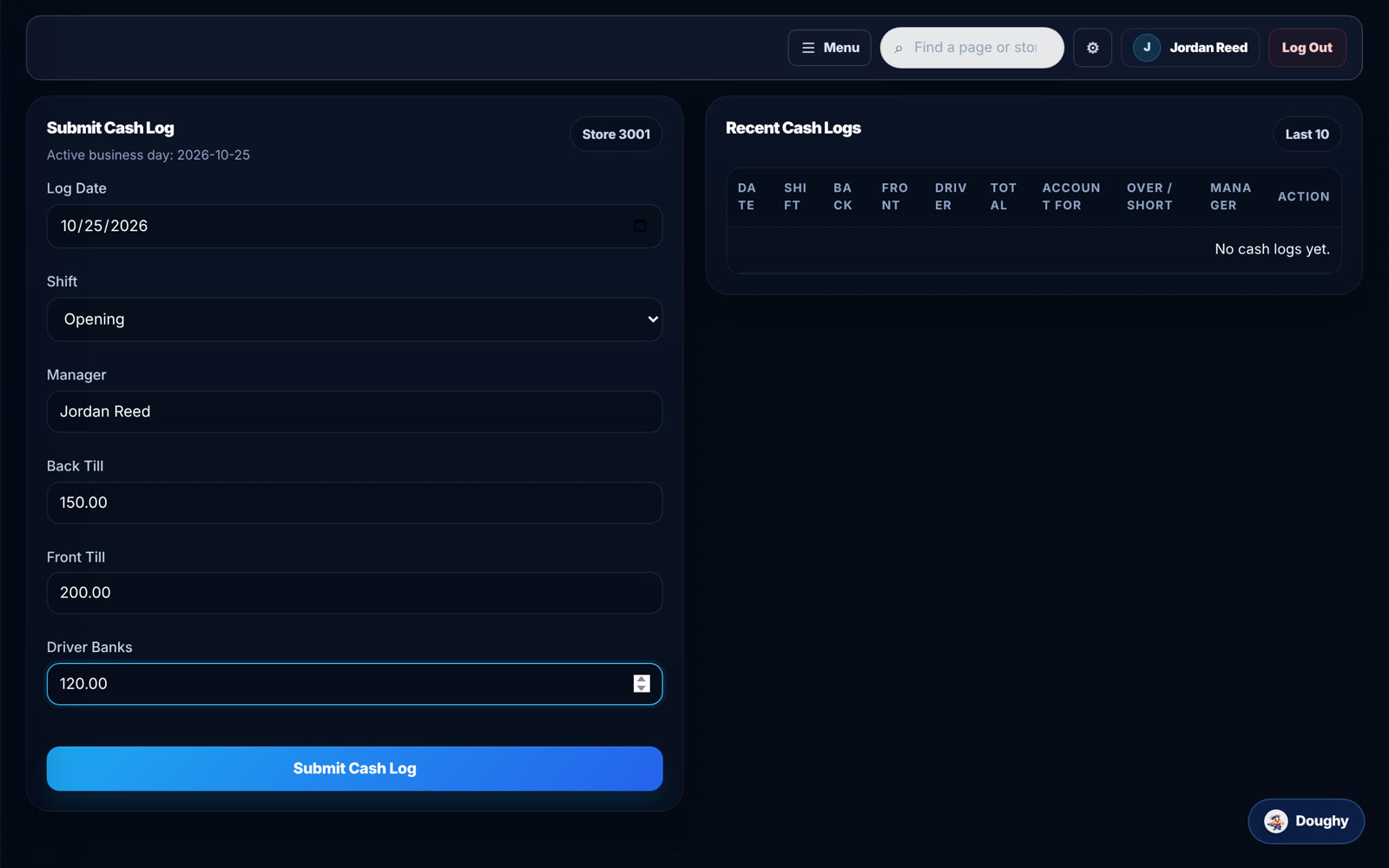
At the end of each shift, open Cash and enter the log date, shift, manager, back till, front till, and driver banks. The page shows the amount to account for and calculates cash over/short. Recent logs are listed below for checking.
Nightly Numbers
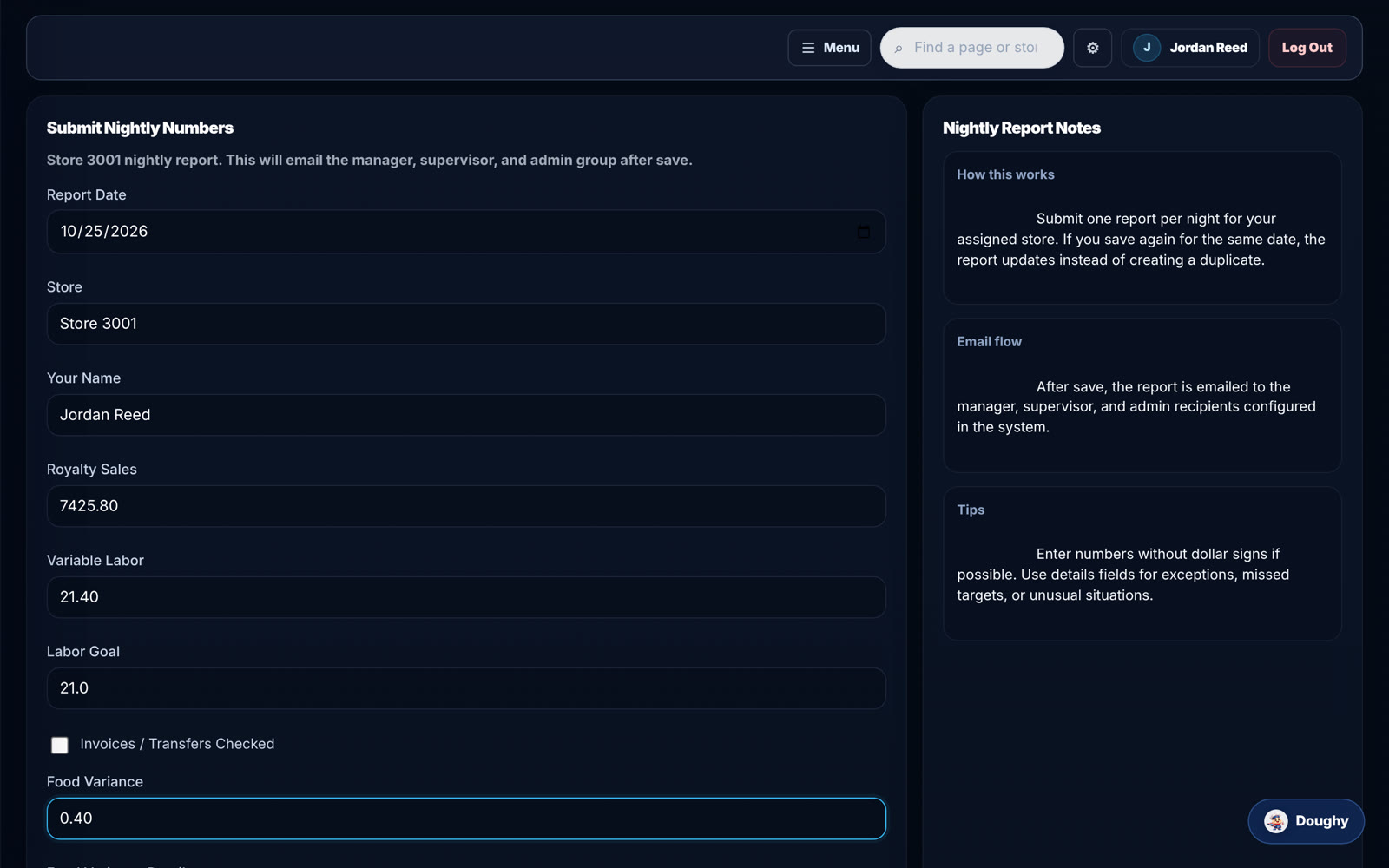
Submit one report per night for your store under Nightly #s: your name, royalty sales, variable labor, labor goal, food variance (with details), and whether invoices and transfers were checked. Saving again for the same date updates the report instead of duplicating it. It is emailed to the GM, supervisor, and admin recipients automatically.
Shift To-Dos
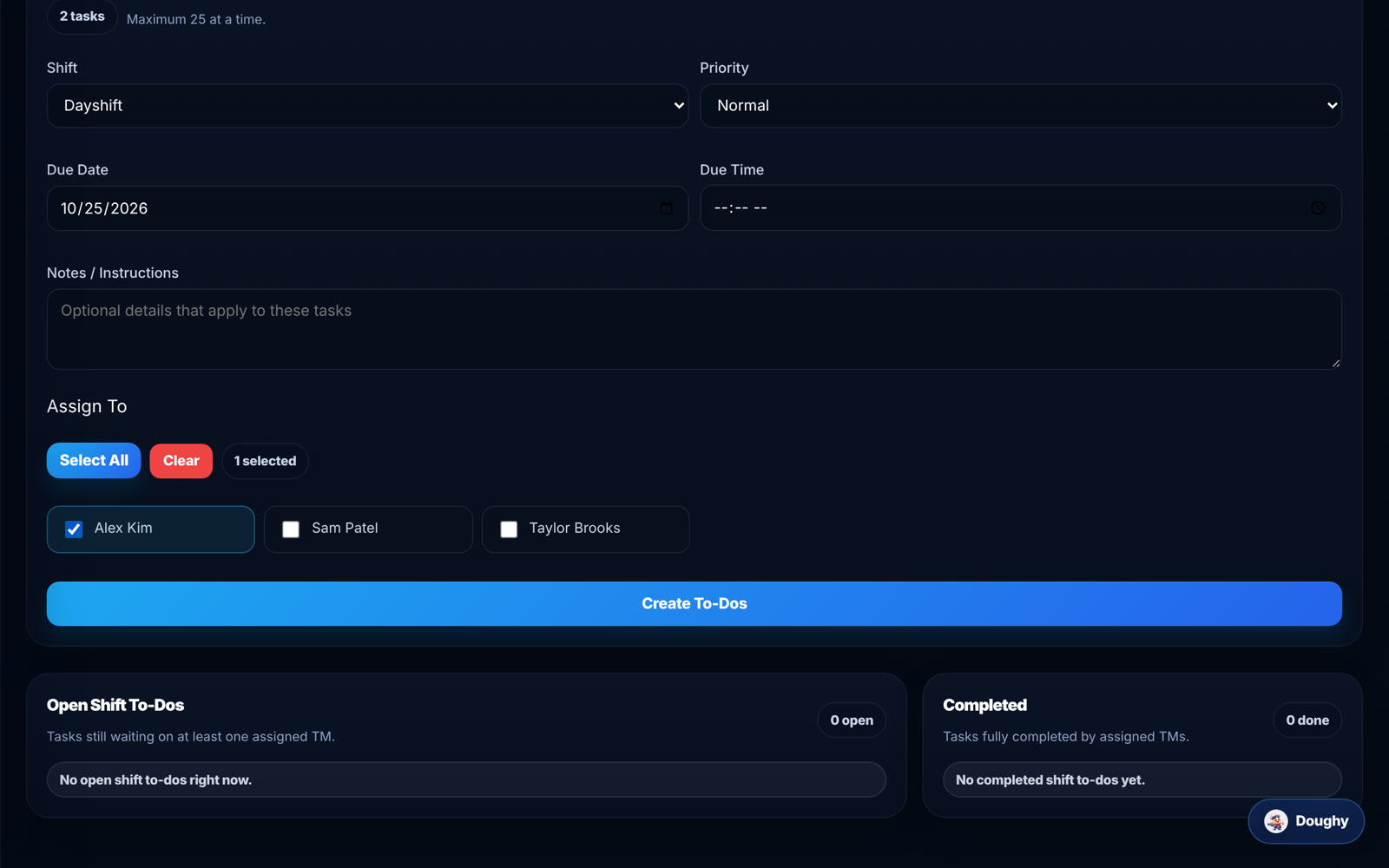
Open Shift To-Dos to assign tasks to TMs on your store: add one or more items, choose the TM, shift, priority, due date and time, and notes, then tap Create To-Dos. Open to-dos and completed ones are listed below; you can cancel one that is no longer needed. TMs see theirs under My To-Dos.
Forms
Forms lists every store form available to you. Fill one in, attach up to 5 photos (JPG or PNG; photos are emailed, not stored), and submit. Forms that need approval go to the Workflow Inbox for the GM, supervisor, HR, or payroll.
Maintenance
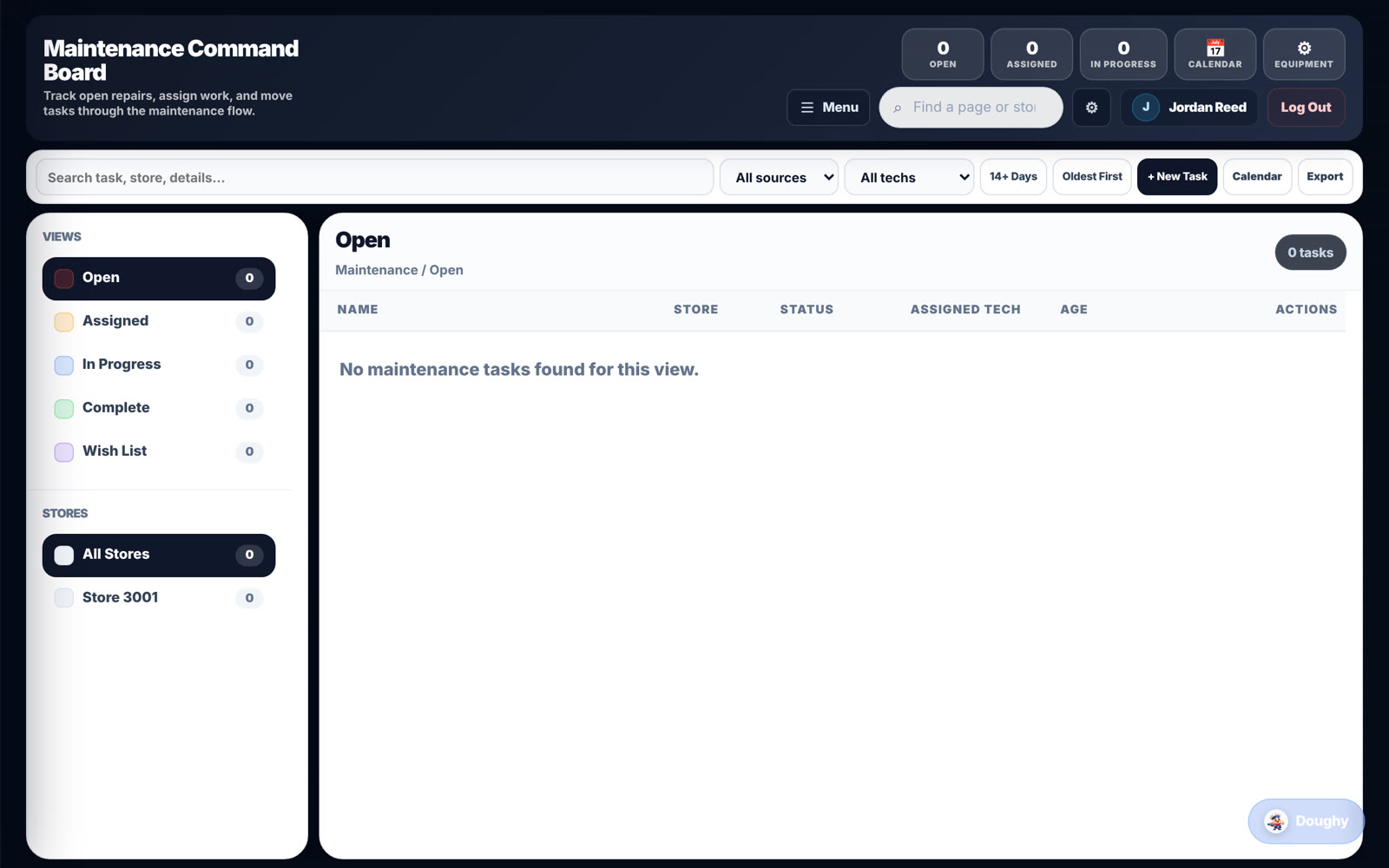
On the Maintenance Command Board, tap Add Task to report broken equipment or a repair. Maintenance staff mark it Start Fix and Complete, so you can see status without calling.
BPI Labels
Food labels print from the BPI Labels printer app on the store device. The BPI Labels page in Ops has the app download and store and printer setup steps.
Store dashboard and TV
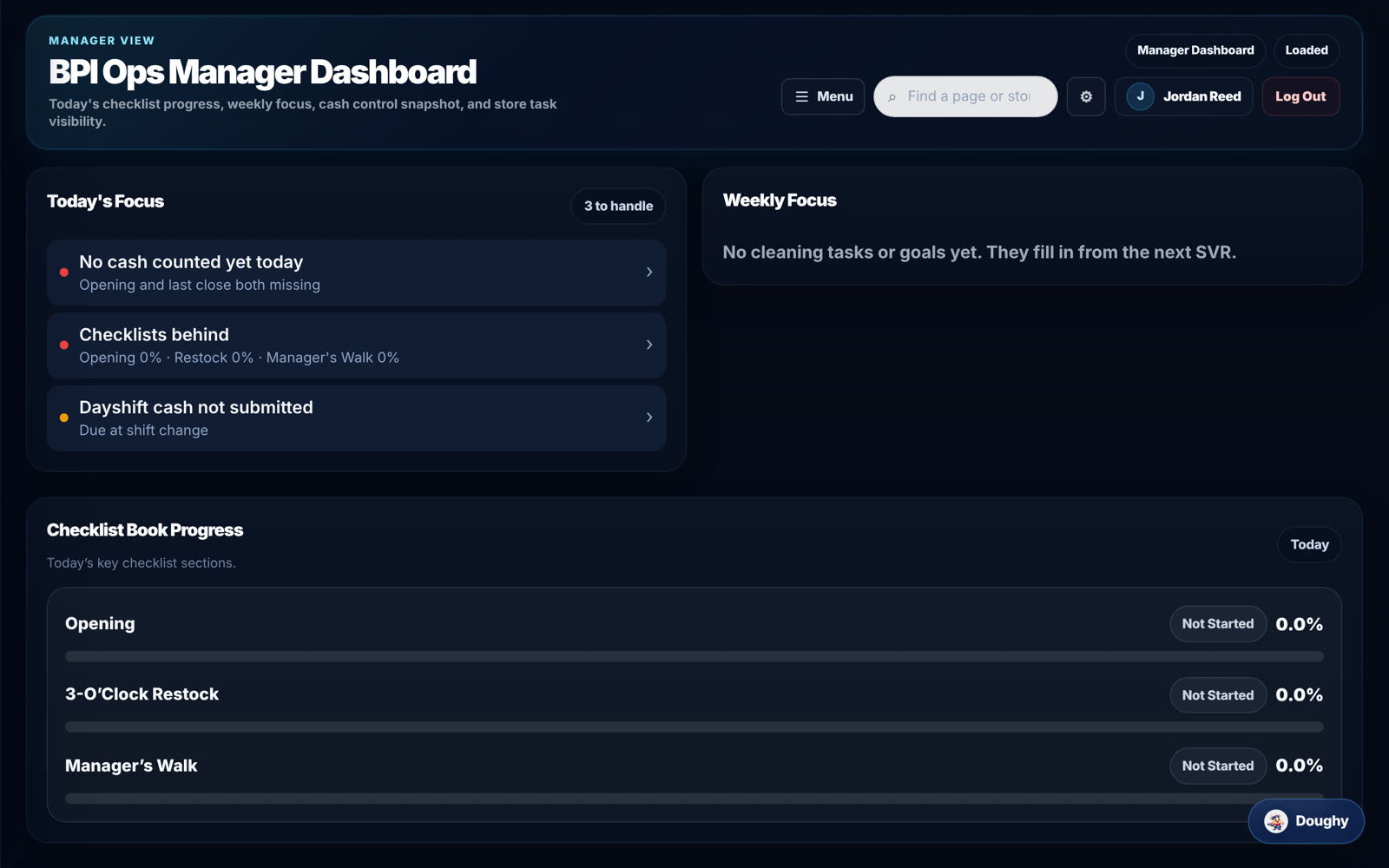
Stores shows the store dashboard: today's focus, weekly cleaning list and goals (filled from the latest SVR), checklist progress, and cash snapshot. The same view runs on the store TV, where Doughy can pop up with voice messages from your supervisor.
Doughy AI
Doughy is the platform's assistant. Ask it questions about your store's numbers, labor, checklist, and attendance.
Manager guide: leading people
People tasks happen mostly in the Connect Ops tab, with DWP and Academy records in BPI Ops. The Ops tab badge counts what is waiting on you.
New hire registrations
New hires scan the store QR code and submit a request. Pending requests show in the Connect Ops tab with their position and availability note; approve or decline them there. To print or display a QR code, open Registration QR Center in BPI Ops (store QR or company QR).
Time off and availability requests
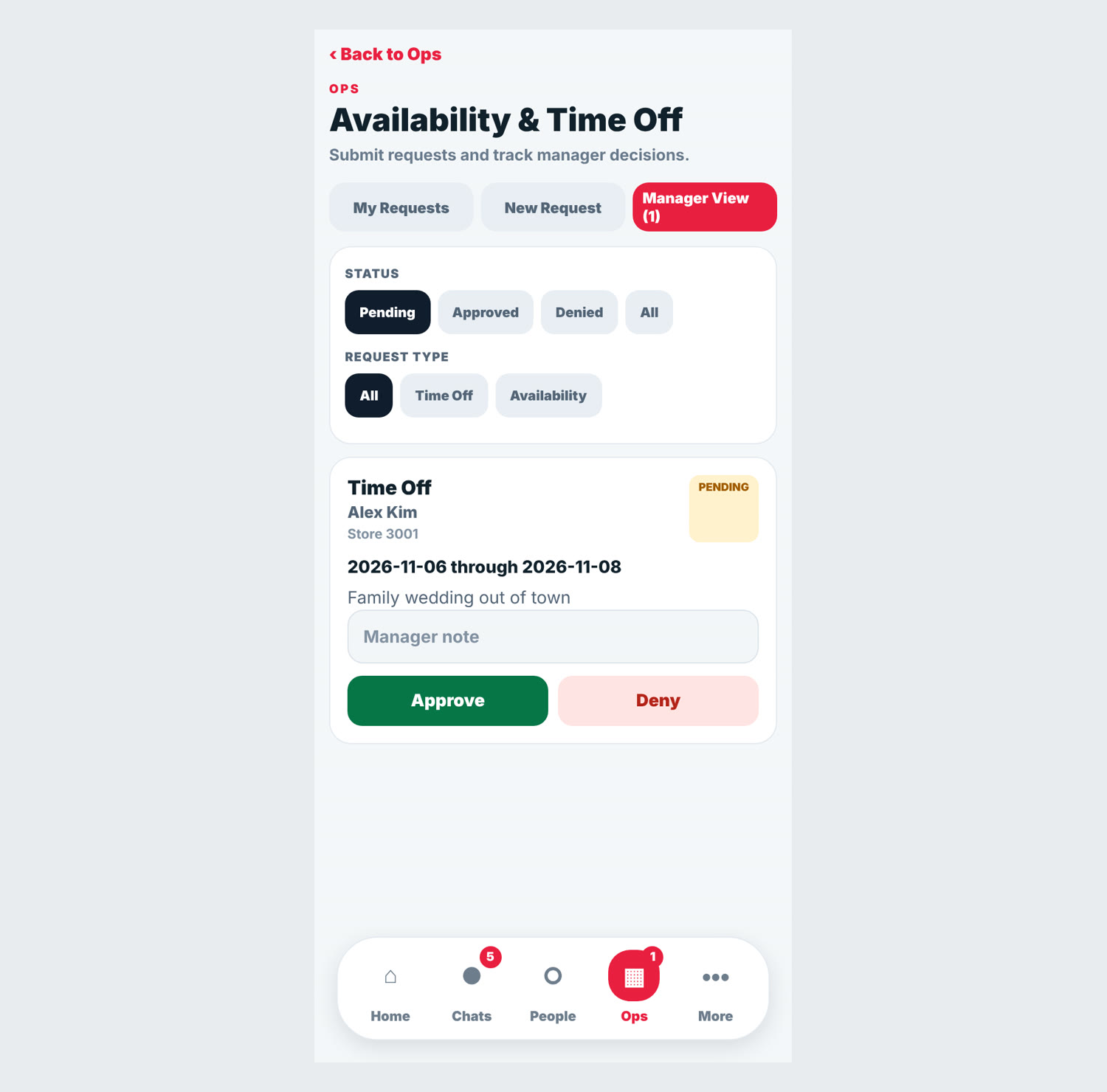
Open Availability & Time Off in the Ops tab and tap Manager View. Filter by status or store, read the request, add a manager note, and tap Approve or Deny. Use the team's availability when building the schedule.
Attendance
- When a TM is 10 or more minutes late without clocking in, Doughy pushes them an "Are you on your way?" alert, announces it on the store TV, and sends the GM and supervisor one summary of everyone not clocked in. Managers and MITs are never pushed directly; they appear only on that summary.
- Open Attendance Fixes to correct a TM's record. Choose: Someone else covered it, Cut for labor (you sent them home or told them not to come), Schedule mistake, or Excused.
- TM-submitted fixes arrive here as "Waiting for manager". Approve or decline each one.
Store Tasks and Recognition
Store Tasks in the Ops tab shows assignments and follow-up. Use Recognition to give shout-outs; consistent recognition shows up on the team's Home screens.
DWP (Discipline Without Punishment)
Document every coaching conversation in BPI Ops under People > DWP. The steps escalate in this order:
- Coaching
- Oral Reminder
- Written Reminder (letter upload required)
- DML, Decision Making Leave (letter upload required)
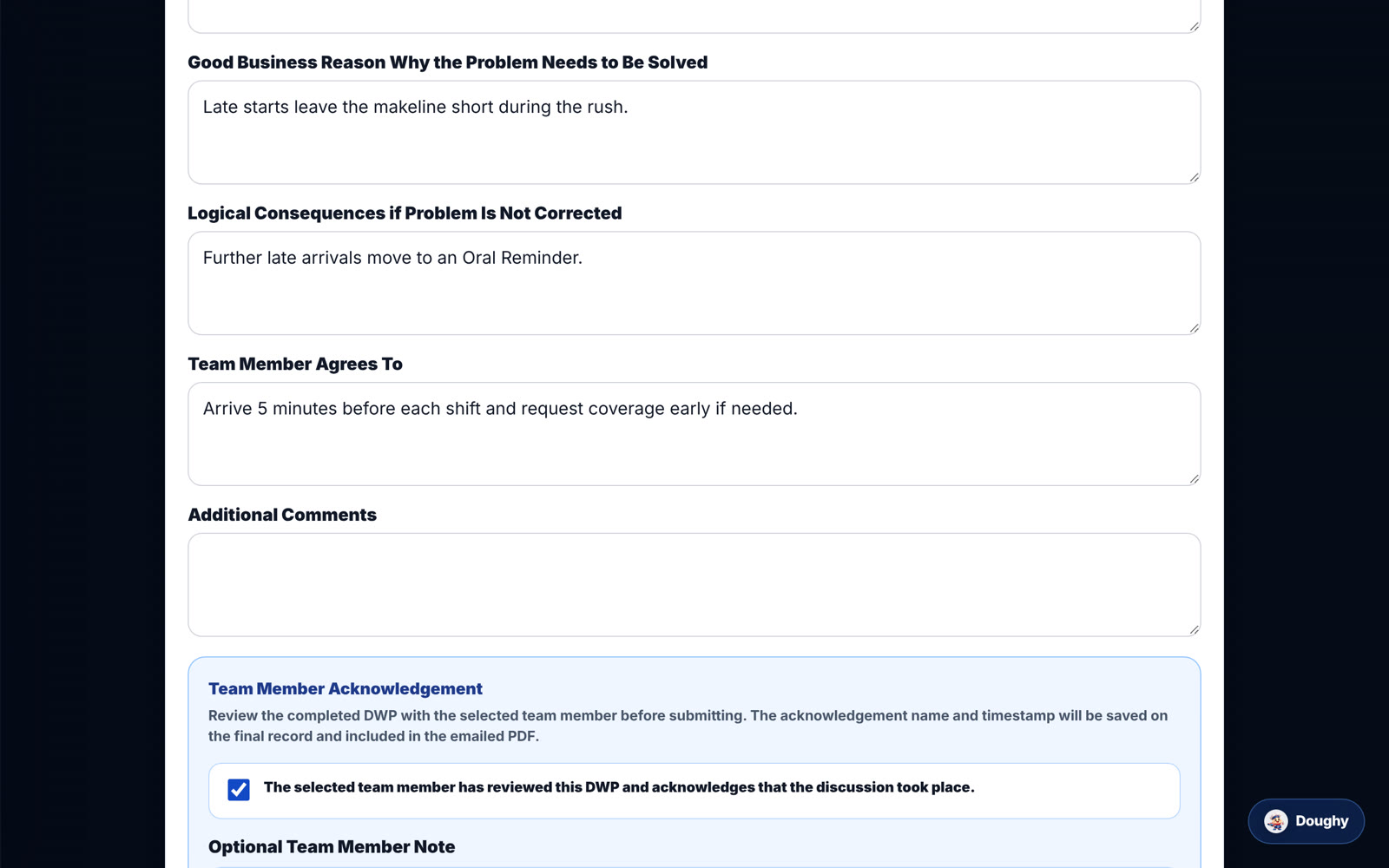
To create one, tap New DWP Record, pick the team member, the dates of the conversation and infraction, the type, and the category (Conduct, Performance, or Attendance). Fill in previous conversations, expected and actual performance, the TM's response, the good business reason, logical consequences, and what the TM agrees to. Review the finished record with the TM in person: they confirm it by ticking the Team Member Acknowledgement box on your screen and can add their own note. Then tap Finalize and Submit DWP. The PDF is emailed to the configured HR recipients, and the record appears in the TM's BPI Documents.
Training (BPI Academy)
- Training Guides: assign a guide (for example 12-day onboarding or MIT first 4 weeks) by picking the trainee and their trainer. Track progress, send reminders, and mark the checklist complete.
- CSR Development: assign TMs to CSR levels I to III, complete captain certifications and CSR evaluations, and save them to the TM's Academy record.
- MIT Store Training System: MITs work through STS levels. Coaches assign STS tasks, verify completion, and promote MITs from the Promotion Queue once a level is 100% complete. Connect shows each MIT their follow-up tasks (working, submitted, overdue).
Messaging your team
Managers can message anyone in their store group, privately or in the store chats. Store-wide, area, and company broadcasts (Send Update) are limited to supervisors, coaches, HR, and admins.
General Manager additions
GMs do everything in the manager guide, plus the approvals and reviews below.
| Task | Where | What to do |
|---|---|---|
| Approve swaps and pickups | Connect > My Schedule > Swaps to approve / Needs your approval | Approve or deny. A warning shows when a swap would put someone into overtime. |
| Cash Review | BPI Ops > Daily Ops > Cash Review | Review the store's cash logs and over/short. |
| Labor | BPI Ops > Labor | Check labor against the ideal schedule. |
| Late clock-in summary | Push from Doughy | Follow up with everyone listed as not clocked in, including managers and anyone not on Connect. |
| Checklist alerts | Email at 11 AM and 4 PM | Chase any section still incomplete. |
| Users and registrations | BPI Ops > Users & Roles, Registration Requests | Approve new accounts and keep positions and stores current. |
| DWP records | BPI Ops > People > DWP | Review records for your store by type, category, and date. |
| Shift To-Dos | BPI Ops > Shift To-Dos | Assign tasks to TMs and managers and check completion. |
Quick reference
| I want to... | TM | Manager / GM |
|---|---|---|
| See my shifts | Connect > Ops > Schedule | Same |
| Swap or give away a shift | My Schedule > Swap / Request coverage | GM approves under Swaps to approve |
| Request time off | Ops > Availability & Time Off > New Request | Review and approve under Manager View |
| Fix an attendance record | Attendance Fixes > Someone covered for me / Something else | Attendance Fixes > Cut for labor / Excused / Schedule mistake |
| Sign a document or DWP | More > BPI Documents | Create DWP in BPI Ops > People > DWP |
| Check training progress | More > BPI Academy | BPI Ops > BPI Academy |
| Run the daily checklist | Not applicable | BPI Ops > Checklist |
| Log cash and nightly numbers | Not applicable | BPI Ops > Cash, Nightly #s |
| Get a new hire set up | Scan the store QR code | Approve in Connect > Ops; print QR in Registration QR Center |
FAQ
I can't see a menu item from this guide. Access is set per module. Ask your GM or supervisor to turn it on.
I forgot my password. On the Connect sign-in screen, type your username or email, then tap Forgot Password.
I got an "Are you on your way?" alert but I'm off today. Tap Not my shift. If it still counts against you, submit an Attendance Fix.
My checklist task says "Not saved". Check your connection, then tap Save all changes.
I saved Nightly Numbers twice. That's fine. The second save updates the first report.